Showing posts with label Code Coverage. Show all posts

Integrating NCover code coverage with your CCNet CIS

I managed to read one more chapter in the CIS story. This one is called ‘Integrating NCover with CruiseControl’.
The CruiseControl documentation page has most of the help you need.
CruiseControl.NET/Doc/CCNET/Using%20CruiseControl.NET%20with%20NCover.html
But NCover has always been a tricky one. If that page worked, I wouldn’t be writing this piece here.

Ingredients:


  1. A CruiseControl.Net (I use v1.0.1) build server running all green. And you better be TDDing that code too…J.

  2. NAnt I use this (v 0.85) to build my code.

  3. NCover I use version 1.3.3 since that’s the only one there that still works with VS2003. Pick up 1.5.x for VS 2005.


Once you have all that in place, it’s time to get this started. To run NCover we need to add a task to our build file. It differs from the one on the CCNet doc page in the placement of the quotation marks. I found my solution by watching the Nant Build log on the CCNet dashboard

<exec program="l:\tools\NCover\ncover.console.exe" commandline="/w AT_Bin\Debug /c &quot;L:\Program Files\NUnit_227\bin\nunit-console.exe&quot; TestBearings.dll" />


Save that one. Now move onto the ccnet.config file. Add this to the tasks block of your project element there. We need this so that code coverage report is merged to the Nant build output file.

<merge>
<files>
<file>L:\BuildFolder\AT_Bin\debug\Coverage.Xml</file>
</files>
</merge>


That’s it. Save and start a build. Hopefully that’s a green. Click on the green build link on the Recent Builds tab. Click on NCover report. You should be seeing something like this.
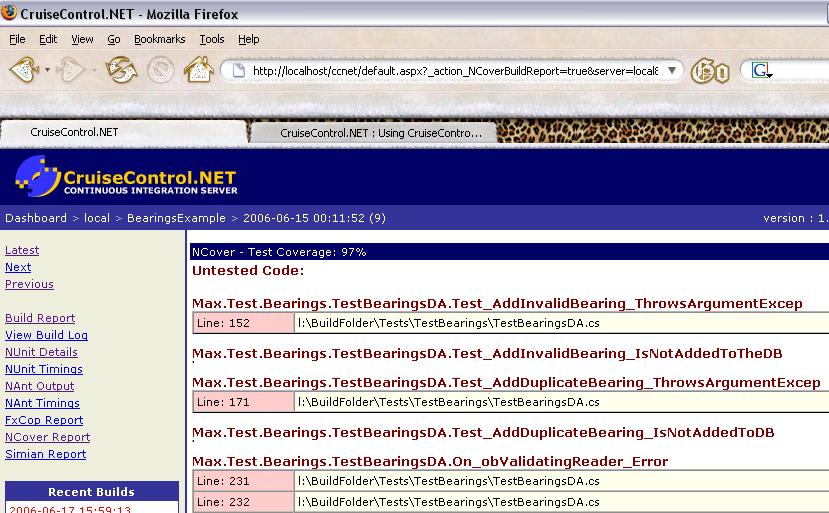

Now to find out why I don’t have 100% coverage J
Just that you know it is possible, If you have a different stylesheet for NCover results, rename and replace the stylesheet named

CruiseControl.NET\server\xsl\NCover.xsl
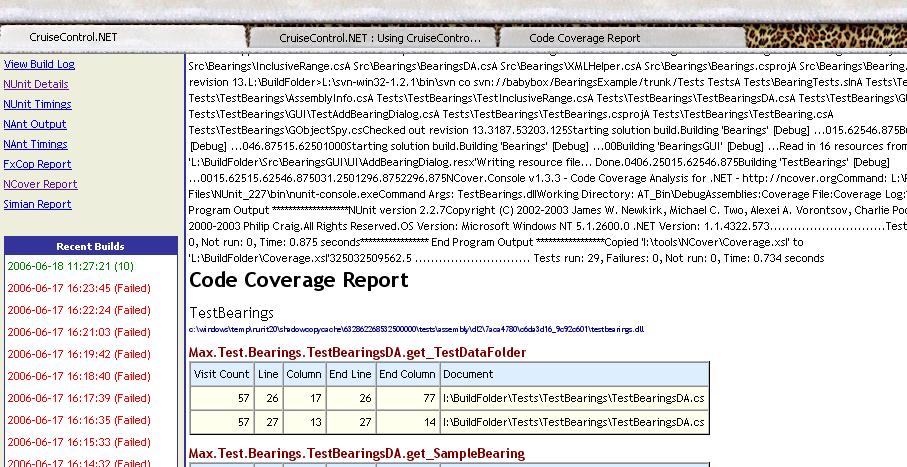
with your own. Hit F5 to refresh your browser and you should see the new results. Here I have use the default xsl that comes with NCover – although the CCNet version is more to the point. The one I mentioned in my earlier post is the best. I got an unexpected console listing at the top … but no big deal.


Code Coverage with NCover from Nunit runs

NCover by Peter Waldschmidt
http://www.ncover.org/downloads.html

NCover is a code coverage tool that runs straight out of the box on your production dlls. No pesky slow instrumentation builds. At run-time it intercepts CLR calls and adds what it needs on the run. Cool !
Getting it to run is another matter altogether. After a couple of frustrating attempts,
(there's a Win32Exception that's just top of the pops.) I think I have got it to run now with NUnit.
So I get automated tests with Code Coverage. Now is that cool or is that cool ? 8)

Running NCover.Console.exe:
use the /w to specify a working directory
Use the /a switch to specify semicolon delimited list of DLLs that it should monitor. By default, NCover will take all it finds in the directory. Use /a to prune the list.
Use the /c switch to specify a command line op that will run thru your code-base. Could be your Main executable or a test app or ... you guessed it NUnit at work!

"e:\Program Files\NCover\NCover.Console.exe" /w "G:\Dev\TestApplications\AutomatedTests\TestDlls\debug" /a GCommon;Licensing /c "e:\Program Files\NUnit 2.2.4\bin\nunit-console.exe" LicenseTests.nunit

Where I messed up
  • NCover doesn't like you "helping" it by giving complete DLL Names. So no 'licensing.dll' instead use 'licensing'
  • Specify the complete path to NUnit - it helps.
  • The coverage log (linked to coverage.xsl by default) caused some kind of problems for browsers. To get around, open up the xml in an editor and remove all instances of '&#x0;' I think that this caused the hyperlinks in the document to blow up but atleast you can now view the coverage report. Dunno why this is so... will post on NCover forum

And last of all,
Get the style sheet from http://blog.hishambaz.com/archive/2004/07/05/153.aspx
To use it, open coverage.xml and modify the stylesheet ref
... ?xml-stylesheet href="coverage2.xsl" ...
Save & Open the file in a browser and you are done. IE gave some active content warning and blanked on enabling active content. No such hassles with Firefox :)